
Positive Grid Spark 40: A Comprehensive Guide
Welcome! This guide details the Spark 40‚ a smart guitar amplifier. Explore its features‚ from app integration to tone customization‚ for an enhanced playing experience.
The Positive Grid Spark 40 is a revolutionary smart guitar amplifier designed for both beginners and experienced musicians. It’s more than just an amp; it’s a complete practice and recording solution packed into a compact and stylish package. Unlike traditional amplifiers‚ the Spark 40 leverages cutting-edge modeling technology to recreate a vast library of iconic amplifiers and effects‚ all controllable through a dedicated mobile app.
This innovative amplifier aims to inspire creativity and make learning guitar more engaging. Its “Smart Jam” feature automatically generates backing tracks based on your playing‚ providing a dynamic and interactive practice experience. The Spark 40 also boasts seamless integration with popular music streaming services‚ allowing you to jam along with your favorite songs.
Whether you’re looking to practice silently with headphones‚ record demos‚ or simply explore a wide range of tones‚ the Spark 40 offers a versatile and user-friendly platform. This guide will walk you through everything you need to know to unlock the full potential of your Spark 40 amplifier.
What’s in the Box & Initial Setup
Upon opening your Spark 40‚ you’ll find the amplifier unit itself‚ a power cable‚ and a quick start guide. Carefully unpack all components and inspect for any damage. To begin‚ connect the power cable to the amplifier and a suitable power outlet. Avoid using extension cords if possible.
Next‚ download the Spark App (available for iOS and Android) from your respective app store; This app is crucial for unlocking the full functionality of the amplifier. Once downloaded‚ launch the app and follow the on-screen instructions to create an account or log in. The app will guide you through the Bluetooth pairing process – ensure Bluetooth is enabled on your mobile device.
After pairing‚ the app will automatically detect your Spark 40. A brief firmware update may be required during the initial setup. Allow the update to complete uninterrupted. Finally‚ connect your guitar using a standard ¼” instrument cable. You’re now ready to start exploring the world of the Spark 40!

Understanding the Hardware
Explore the Spark 40’s physical components! This section details the front and rear panels‚ speaker specifications‚ and overall build quality for optimal use.
Front Panel Controls: A Detailed Overview
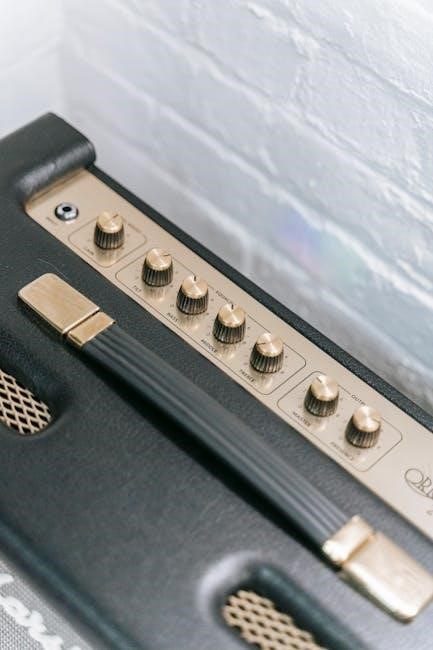
The Spark 40’s front panel is intuitively designed for quick access to essential controls. Starting from the left‚ you’ll find the Instrument Input – a standard ¼” jack for connecting your guitar. Next is the Gain knob‚ controlling the input signal and drive for various amp models. The Master Volume adjusts the overall output level.
Central to the panel are the Tone controls: Bass‚ Middle‚ and Treble‚ allowing you to sculpt your sound. The Mod knob accesses modulation effects like chorus‚ flanger‚ and phaser. Delay/Reverb combines these two essential spatial effects into one convenient control. Further along‚ the Boost switch activates a selected boost effect‚ adding extra gain or presence.
The Amp Jewel LED indicates power status. The Voice control offers quick access to pre-defined amp tones. Finally‚ the Effects button cycles through different effect categories‚ and the large Control Knob navigates and adjusts parameters within the Spark app. A built-in tuner is activated by pressing and holding the Control Knob.
Rear Panel Connections & Functionality
The Spark 40’s rear panel provides comprehensive connectivity options. Starting from the left‚ you’ll find the Power Input for the included adapter. Next is the Aux Input – a stereo ¼” jack for connecting external audio sources like smartphones or MP3 players. The Headphone Output‚ also a stereo ¼” jack‚ allows for silent practice.
Crucially‚ there are Speaker Outputs‚ supporting both 8Ω and 16Ω cabinets‚ enabling connection to external speaker cabs. A USB port facilitates connection to your computer for firmware updates and direct recording. The FX Send/Return jacks allow integration with external pedals and effects processors‚ expanding your sonic palette.
The Line Out (¼”) provides a balanced signal for connecting to a mixing console or audio interface; Finally‚ a Footswitch Input (¼”) supports optional footswitch control for features like tone switching or looper activation. Ensure proper impedance matching when connecting external speakers to avoid damage.
Speaker & Amplifier Specifications

The Spark 40 boasts a 40-watt RMS power amplifier‚ delivering ample volume for practice and small gigs. It’s paired with dual 4” speakers‚ providing a full and balanced sound across the frequency spectrum. The amplifier utilizes a Class D amplifier design‚ known for its efficiency and clean power delivery.
Frequency Response extends from 70Hz to 16kHz‚ covering the essential range for guitar tones. Speaker Impedance is 8Ω per speaker‚ totaling 4Ω when connected in parallel. Maximum Input Level is 1.2V RMS. The amplifier supports a wide range of guitar types‚ including electric‚ acoustic-electric‚ and bass (though bass performance is optimized with specific tone settings).
Total Harmonic Distortion (THD) is less than 0.5% at rated power‚ ensuring a clear and articulate sound. Signal-to-Noise Ratio exceeds 80dB‚ minimizing unwanted noise. These specifications contribute to the Spark 40’s versatile and high-quality audio performance.

Software & App Integration
Unlock the Spark 40’s full potential via the companion app! Control tones‚ access Smart Jam‚ and explore ToneCloud – all wirelessly connected for seamless use.
Downloading & Installing the Spark App
Getting started with your Spark 40 requires the free Positive Grid Spark app‚ available for iOS and Android devices. Begin by visiting the App Store (iOS) or Google Play Store (Android) on your smartphone or tablet. Search for “Positive Grid Spark” – ensure it’s the official app by Positive Grid.

Tap “Install” and allow the download to complete. Once installed‚ open the app. You’ll be prompted to create a Positive Grid account or log in if you already have one. This account is crucial for accessing ToneCloud and saving your custom tones.
The app will guide you through a quick tutorial. Follow the on-screen instructions to pair your device with the Spark 40 amplifier. This typically involves enabling Bluetooth on your device and selecting the Spark 40 from the list of available devices. Ensure your amplifier is powered on during this process. A stable Bluetooth connection is vital for optimal performance and control.
Navigating the Spark App Interface
The Spark app boasts a user-friendly interface. The main screen displays core functions: Tone‚ Smart Jam‚ and Looper. The ‘Tone’ section is where you select and customize amp models and effects. Swipe left/right to browse available tones‚ or tap ‘Edit’ for detailed control.
The bottom navigation bar provides access to ‘Home’ (ToneCloud & news)‚ ‘Tone’ (amp & effects)‚ ‘Smart Jam’ (auto-accompaniment)‚ and ‘Profile’ (account settings). The ‘Profile’ section allows you to manage your account‚ adjust settings‚ and access support resources.
Within the ‘Tone’ section‚ you’ll find controls for Gain‚ Bass‚ Middle‚ Treble‚ and Master Volume. Effects are categorized (modulation‚ delay‚ reverb) and can be easily added or removed. Experiment with the ‘Mix’ knob to blend the effect with the dry signal. Remember to save your creations for future use!
ToneCloud: Exploring & Utilizing Presets
ToneCloud is a powerful feature within the Spark app‚ offering a vast library of user-created and professionally designed presets. Access it via the ‘Home’ screen. You can search for tones by genre (Rock‚ Blues‚ Jazz‚ etc.)‚ artist‚ or specific equipment (Fender‚ Marshall‚ Vox).
Each preset displays its rating and the number of downloads. Tap a preset to preview it instantly through your Spark 40. If you like it‚ tap ‘Download’ to save it to your library. You can also ‘Favorite’ tones for quick access.
Don’t hesitate to explore! ToneCloud is a fantastic way to discover new sounds and learn how different amp models and effects work together. You can even modify downloaded tones to create your own unique variations. Remember to upload your best creations back to ToneCloud to share with the community!
Diving into Tone Creation
Unleash your sonic potential! This section guides you through crafting custom tones using amp modeling‚ effects‚ and the Spark app’s intuitive interface.
Basic Amp Modeling & Effects
The Spark 40 boasts a diverse library of amp models‚ faithfully recreating iconic tones from Fender‚ Marshall‚ Vox‚ and more. Access these via the Spark app‚ selecting from clean‚ crunchy‚ or high-gain options. Experiment with different amp types to find the foundation for your sound.
Beyond amps‚ the Spark 40 offers a wide array of built-in effects. These include modulation effects like chorus‚ flanger‚ and tremolo; dynamic effects such as compression and overdrive; and spatial effects like delay and reverb. Each effect features adjustable parameters‚ allowing for subtle enhancements or dramatic transformations.
To apply an effect‚ simply select it within the app and adjust the ‘Mix’ knob to blend the effected signal with your dry signal. The ‘Level’ control adjusts the overall output volume. Stacking multiple effects is encouraged – try combining overdrive with delay for a classic rock sound‚ or chorus with reverb for a shimmering clean tone. Remember to save your creations as presets for easy recall!
Customizing Your Own Tones: A Step-by-Step Guide
Creating unique tones with the Spark 40 is intuitive. Begin by selecting a base amp model that closely resembles your desired sound. Next‚ explore the effects section within the Spark app. Start with one effect – perhaps a subtle overdrive – and adjust its parameters (Gain‚ Tone‚ Level) until you achieve the desired character.
Gradually add more effects‚ layering them to build complexity. Pay attention to the order of effects; for example‚ placing reverb after distortion creates a different sound than placing it before. Utilize the ‘Mix’ controls for each effect to fine-tune the blend. Regularly A/B compare your customized tone with presets to gauge your progress.
Don’t be afraid to experiment! Small adjustments can yield significant results. Once satisfied‚ save your tone as a preset with a descriptive name. The Spark 40 allows for extensive customization‚ empowering you to craft sounds perfectly tailored to your playing style and musical preferences.
Using the Smart Jam Feature
The Smart Jam feature is a revolutionary tool for practice and inspiration. To initiate‚ simply press the ‘Smart Jam’ button within the Spark app. The amplifier analyzes your playing in real-time and generates a backing track tailored to your style and chord progression.
Customize the experience by selecting a genre – Blues‚ Rock‚ Pop‚ and more – to influence the generated accompaniment. Adjust the intensity and complexity of the backing track to match your skill level. Experiment with different key signatures to explore new harmonic possibilities.
Smart Jam isn’t just for solo practice; it’s a creative springboard. Use it to jam along‚ develop improvisational skills‚ and even write new songs. The feature dynamically responds to your playing‚ creating a truly interactive musical experience. Save your Smart Jam sessions for later review and further exploration.

Advanced Features & Troubleshooting
Explore deeper customization options and resolve common issues. Firmware updates‚ looper mastery‚ and solutions to typical problems are covered within this section for optimal use.
Looper Functionality & Tips
The Spark 40’s looper is a powerful tool for practice and creativity. Access it directly from the app or via the physical footswitch (if connected). To begin‚ simply press the ‘Record’ button; the amp will start recording your playing immediately. Play along to build layers‚ creating a full band sound even when practicing solo.
Overdubbing is seamless – just hit ‘Record’ again to add another layer on top of the existing loop. The loop length is adjustable within the app‚ allowing for shorter rhythmic phrases or extended improvisational sections. Experiment with different loop lengths to find what suits your style;
Playback controls include ‘Play/Pause’‚ ‘Stop’ (which clears the loop)‚ and ‘Undo/Redo’ for correcting mistakes. Utilize the ‘Quantize’ feature in the app to tighten up your timing‚ especially when layering multiple parts. Pro Tip: Use the Smart Jam feature before looping to establish a backing track‚ then loop over that for a more dynamic practice session. Remember to save your loops within the app for later recall!
Firmware Updates & Maintenance
Keeping your Spark 40 updated with the latest firmware is crucial for optimal performance and access to new features. Positive Grid regularly releases updates via the Spark app. To check for updates‚ open the app and navigate to the ‘Settings’ menu‚ then select ‘Firmware Update’. Ensure a stable Wi-Fi connection during the update process – do not interrupt it!
Regular maintenance involves keeping the amplifier clean and free from dust. Use a soft‚ dry cloth to wipe down the exterior. Avoid using liquids or harsh chemicals. Periodically check the speaker grille for any obstructions. For the app‚ ensure you have sufficient storage space on your device.
Troubleshooting updates: If an update fails‚ try restarting both the amplifier and your device. If issues persist‚ consult the Positive Grid support website for assistance. Important: Always back up your custom tones before performing a firmware update‚ although the process is generally safe. A well-maintained Spark 40 will provide years of reliable service!
Common Issues & Solutions
No sound? First‚ verify the guitar cable is securely connected and the volume is turned up on both the amplifier and your guitar. Check the input selection in the Spark app. Distorted sound with no drive? This could indicate a gain staging issue – adjust the input gain and master volume.
App connectivity problems? Ensure Bluetooth is enabled on your device and the Spark 40. Restart both devices. Confirm the Spark app has the necessary permissions. Smart Jam not responding? Check your internet connection; it requires online access.
Firmware update failed? As previously mentioned‚ restart both devices and try again. If problems persist‚ contact Positive Grid support. Static or buzzing? Try a different guitar cable or power outlet. If the issue continues‚ it may indicate a hardware problem requiring professional attention. Always consult the official Positive Grid support resources for detailed troubleshooting steps.